PDB to BlenderHow to UseFile InformationFile FeaturesHow it WorksFAQOther PDB ToolsLatest News
to

Convert Your 3D Mesh/Model PDB Files to Blender

Our free and fast tool will convert your 3D PDB (Protein Data Bank) model files to a standard Blender file that can then be edited further in most popular 3D editing packages or 3D printed without any further processing. Our conversion tool can also batch convert multiple PDB files; up to 200 files at a time can be converted.

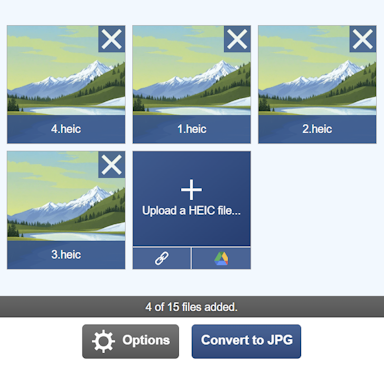
To convert your PDB file, click the Upload button above and select the file to convert. Once selected, the file will be converted to a Blender file and will be ready for download shortly afterwards. For more information about the PDB to Blender conversion process, see the conversion information section below.

How to Convert your PDB to Blender Online?

Here are two simple steps to convert your PDB to Blender.

Upload a PDB File

Click the "Upload a PDB File" button and select a PDB to upload. The maximum file size is 100MB.

Download your Blender File

Click the download link once completed to receive your Blender file.

File Format Information for PDB to Blender

ExtensionPDB
Full NameProtein Data Bank
Type3D Model
Mime Typeapplication/octet-stream
FormatBinary
ToolsPDB Converters, 3D Model Voxelizer, Create PDB Animation, PDB Viewer

Description

The PDB file format is used to describe protein molecule structures. Its full title, Protein Data Bank, started out back in 1976 and was used as a means to store molecules, their structures, and associated data such as coordinates.

The format is a plain-text format and has evolved over the years, with the latest version becoming available in 2011. PDB files can be opened with a variety of 3D modeling programs and some specialist software too.

ExtensionBLEND
Full NameBlender
Type3D Model
Mime Typeapplication/octet-stream
FormatBinary
ToolsBLEND Converters, 3D Model Voxelizer, Create BLEND Animation, BLEND Asset Extractor, Text to BLEND, BLEND Viewer
Open WithBlender

Description

The BLEND file type is the native 3D graphics file format of the 3D modeling application Blender. Originally released in 1994, Blender has grown over the years and is one of the most popular 3D applications available.

BLEND files store 3D content such as 3D geometry, vertices, faces, normals, animations, materials, and much more. Blender is free and open-source, contains many features you would expect in a high-end 3D editing application, and is available for most current operating systems.

Blender Notes

If your original model file contains texture images and other texture-related data, these will be included in the final BLEND file.

Supported Features

  • Mesh geometry
  • Materials
  • Textures

Comparing PDB and Blender Features


PDB Features

  • Mesh Geometry (Vertices and Faces)
  • Vertex Normals
  • Face Normals
  • Vertex Colors
  • Face Materials (Excluding textures)
  • Textures
  • Point Cloud
  • Multiple Objects Per File
  • Object Transforms (Translation, Rotation, and Scale)
  • Bones/Joints
  • Animations
  • Suitable for 3D Printing

Blender Features

  • Mesh Geometry (Vertices and Faces)
  • Vertex Normals
  • Face Normals
  • Vertex Colors
  • Face Materials (Excluding textures)
  • Textures
  • Point Cloud
  • Multiple Objects Per File
  • Object Transforms (Translation, Rotation, and Scale)
  • Bones/Joints
  • Animations
  • Suitable for 3D Printing

How does it work?

Converting from the PDB file format to Blender can be a complex process, and any tool used for this conversion process needs to be able to handle a variety of data conversion tasks as well as identify any defects within the 3D model and fix them. Here we will explain the conversion process used by our tool to accurately convert your PDB file to a valid Blender 3D model. Let's start with the conversion process, which involves the following steps:

Step 1: Read the Source PDB File

In its simplest form, an PDB file is a binary data file containing 3D data such as vertices, faces, normals, and more. When combined, these make up the 3D model you see on your screen.

For more information regarding the PDB file format, please see this great article that goes into a lot of detail explaining the PDB format.

Step 2: Process File Data

With the PDB file data read, our tool generates an internal representation of the full 3D model and will attempt to fix any geometry issues encountered. Along with repairing any issues with the 3D model, the tool will remove any duplicated vertices and prepare the model for exporting to the Blender format.

Step 3: Saving to the Blender Format

With the conversion process entering its final stages, our tool now needs to take the in-memory 3D model we have created in step 2 and convert it to the Blender format.

Frequently Asked Questions

What version of Blender will the file be saved as?

Our tool will save all Blender files that can be opened with version [z] of Blender.

I have several PDB files; can I batch convert my PDB to Blender?

Yes! Our PDB tool supports full batch conversions. You can upload up to 200 PDB files at a time. Our tool will convert them all as quickly as possible. Once completed, you can either download the Blender files individually or download them all in a single ZIP file.

How can I convert my PDB file to Blender?

First click the "Upload..." button, and select your PDB file to upload. You can also drag and drop your file onto the tool. Once your file is selected, you can set any configuration options. When the PDB to Blender conversion has completed, you can download your Blender file straight away.

How long does it take to convert my PDB to Blender?

We aim to process all PDB to Blender conversions as quickly as possible, this usually takes around 5 seconds but can be more for larger more complex files so please be patient.

How accurate is the PDB to Blender conversion?

We aim to create the most accurate conversions with our tools. Our tools are under constant development with new features and improvements being added every week.

Is it safe to convert my PDB to Blender on ImageToStl.com?

Yes, of course! We do not store the PDB file you submit to us. The resulting Blender file, once created, is stored for 4 hours after upload; after this time it is deleted, and the short-term download link will stop working. You can create a long-term download Url with most tools that will ensure the file is retained for 24 hours, allowing you to download the file when convenient. Our tools also come with a Delete button, allowing you to delete the file immediately.

Do I need a high-spec. computer to use the PDB to Blender converter?

No. All our conversion tools process your PDB file on our dedicated conversion servers, meaning you can use our tools on low-spec computers, laptops, tablets, and mobile devices and receive your converted Blender file quickly.

Can I convert my PDB to Blender on Windows, Linux, Android, iOS or Mac OS?

Yes! Our PDB to Blender tool will run on any system with a modern web browser. No specialist software is needed to run any of our conversion tools.

What if I am using an Ad Blocker, will that affect things?

Yes. Although you can use an Ad Blocker, if you like our PDB conversion tool please consider white-listing our website. When an Ad Blocker is enabled there are some conversion limits and some settings may not be available when using our tools. Processing/conversion and download times will also be longer.

Can I get support with converting my PDB to Blender?

Yes. When you have converted your PDB to Blender, there is a "Feedback" option that you can use to let us know of any issues you encountered when converting your file.

© 2025 ImageToStl. Convert your PNG and JPG Files to 3D STL files.