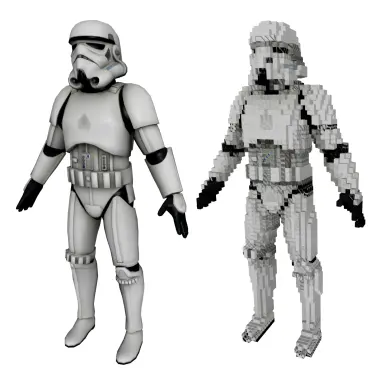
Convert Your 3D Mesh/Model STL Files to 3DM

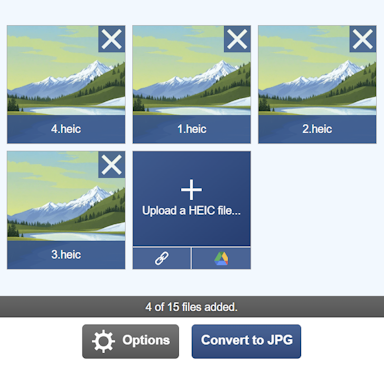
Our free and fast tool will convert your 3D STL (Standard Triangle Language) model files to a standard 3DM (Rhinoceros 3D) file that can then be edited further in most popular 3D editing packages or 3D printed without any further processing. Our conversion tool can also batch convert multiple STL files; up to 200 files at a time can be converted.

Using this tool

To convert your STL file, click the Upload button above and select the file to convert. Once selected, the file will be converted to a 3DM file and will be ready for download shortly afterwards. For more information about the STL to 3DM conversion process, see the conversion information section below.

How to Convert your STL to 3DM Online?

Here are two simple steps to convert your STL to 3DM.

Upload a STL File

Click the "Upload a STL File" button and select a STL to upload. The maximum file size is 500MB.

Download your 3DM File

Click the download link once completed to receive your 3DM file.

File Format Information for STL to 3DM

ExtensionSTL
Full NameStandard Triangle Language
Type3D Model
Mime Typeapplication/vnd.ms-pki.stl
FormatText & Binary
ToolsSTL Converters, 3D Model Voxelizer, Create STL Animation, Compress STL, Text to STL, STL Viewer
Open WithBlender, Daz Studio, MeshLab, CAD Assistant

Description

The STL file format has its roots in the 1980's and is the native file format for 3D Systems stereolithography CAD software. The format defines a triangulated mesh with vertices and faces and is a popular format for sharing 3D printable model files.

There were several formats that attempted to extend the STL format, namely SolidView and VisCAM, whose formats included limited 15-bit color information for each mesh face, which is often ignored by most modern 3D software. The STL format can be either text or binary; our tools will support both formats.

STL Notes

Standard STL files do not contain material or color information, so this cannot be imported. There are, however, two formats (VisCAM and SolidView) that attempt to add color information to the STL file format. If our tool detects this additional color information, it will attempt to import this information.

Supported Features

  • Mesh geometry
  • Face colors via the VisCAM and SolidView formats
  • Binary and text versions are supported
Extension3DM
Full NameRhinoceros 3D
Type3D Model
Mime Typex-world/x-3dmf
FormatBinary
Tools3DM Converters, 3D Model Voxelizer, Create 3DM Animation, 3DM Asset Extractor, Text to 3DM, 3DM Viewer

Description

The 3DM format, also known as Rhino3D or Rhinoceros 3D, is a 3D graphics model file format developed and used in CAD applications, industrial design, and 3D printing. The format has some compatibility with Adobe Illustrator and can be exported as an AI file using vector graphics.

Although it is a 3D file format, it stores data in the NURBS geometry format, which allows for greater mathematical precision compared to triangle or polygon-based mesh geometry formats such as STL. Along with support for converting between other CAD formats, the 3DM format can also support two different scripting languages.

Comparing STL and 3DM Features


STL Features

  • Mesh Geometry (Vertices and Faces)
  • Vertex Normals
  • Face Normals
  • Vertex Colors
  • Face Materials (Excluding textures)
  • Textures
  • Point Cloud
  • Multiple Objects Per File
  • Object Transforms (Translation, Rotation, and Scale)
  • Bones/Joints
  • Animations
  • Suitable for 3D Printing

3DM Features

  • Mesh Geometry (Vertices and Faces)
  • Vertex Normals
  • Face Normals
  • Vertex Colors
  • Face Materials (Excluding textures)
  • Textures
  • Point Cloud
  • Multiple Objects Per File
  • Object Transforms (Translation, Rotation, and Scale)
  • Bones/Joints
  • Animations
  • Suitable for 3D Printing

How does it work?

Converting from the STL file format to 3DM can be a complex process, and any tool used for this conversion process needs to be able to handle a variety of data conversion tasks as well as identify any defects within the 3D model and fix them. Here we will explain the conversion process used by our tool to accurately convert your STL file to a valid 3DM 3D model. Let's start with the conversion process, which involves the following steps:

Step 1: Read the Source STL File

In its simplest form, an STL file can be either a plain text or binary file containing 3D data such as vertices, faces, normals, and more. When combined, these make up the 3D model you see on your screen.

For more information regarding the STL file format, please see this great article that goes into a lot of detail explaining the STL format.

⇪

Step 2: Process File Data

With the STL file data read, our tool generates an internal representation of the full 3D model and will attempt to fix any geometry issues encountered. Along with repairing any issues with the 3D model, the tool will remove any duplicated vertices and prepare the model for exporting to the 3DM format.

⇪

Step 3: Saving to the 3DM Format

With the conversion process entering its final stages, our tool now needs to take the in-memory 3D model we have created in step 2 and convert it to the 3DM format.

Frequently Asked Questions

What STL formats can I convert from?

You can convert from both text and binary STL files. If your STL file contains color information we will bring this over.

How does ImageToStl.com differ from other STL file conversion websites?

Many 3D file conversion websites use the same off-the-shelf components to convert files, these often lack features and full STL file compatibility. Our bespoke file conversion tools offer full STL file compatibility and have been developed in-house by a team of developers, some of whom have over 30 years of experience working with 3D graphics file formats, meaning our tools will convert your STL file quickly and accurately with maximum compatibility.

I have several STL files; can I batch convert my STL to 3DM?

Yes! Our STL tool supports full batch conversions. You can upload up to 200 STL files at a time. Our tool will convert them all as quickly as possible. Once completed, you can either download the 3DM files individually or download them all in a single ZIP file.

How can I convert my STL file to 3DM?

First click the "Upload..." button, and select your STL file to upload. You can also drag and drop your file onto the tool. Once your file is selected, you can set any configuration options. When the STL to 3DM conversion has completed, you can download your 3DM file straight away.

How long does it take to convert my STL to 3DM?

We aim to process all STL to 3DM conversions as quickly as possible, this usually takes around 5 seconds but can be more for larger more complex files so please be patient.

How accurate is the STL to 3DM conversion?

We aim to create the most accurate conversions with our tools. Our tools are under constant development with new features and improvements being added every week.

Is it safe to convert my STL to 3DM on ImageToStl.com?

Yes, of course! We do not store the STL file you submit to us. The resulting 3DM file, once created, is stored for 4 hours after upload; after this time it is deleted, and the short-term download link will stop working. You can create a long-term download Url with most tools that will ensure the file is retained for 24 hours, allowing you to download the file when convenient. Our tools also come with a Delete button, allowing you to delete the file immediately.

Do I need a high-spec. computer to use the STL to 3DM converter?

No. All our conversion tools process your STL file on our dedicated conversion servers, meaning you can use our tools on low-spec computers, laptops, tablets, and mobile devices and receive your converted 3DM file quickly.

Can I convert my STL to 3DM on Windows, Linux, Android, iOS or Mac OS?

Yes! Our STL to 3DM tool will run on any system with a modern web browser. No specialist software is needed to run any of our conversion tools.

What if I am using an Ad Blocker, will that affect things?

Yes. Although you can use an Ad Blocker, if you like our STL conversion tool please consider white-listing our website. When an Ad Blocker is enabled there are some conversion limits and some settings may not be available when using our tools. Processing/conversion and download times will also be longer.

Can I get support with converting my STL to 3DM?

Yes. When you have converted your STL to 3DM, there is a "Feedback" option that you can use to let us know of any issues you encountered when converting your file.

© 2026 ImageToStl. Convert your PNG and JPG Files to 3D STL files.